SetPoint Button Tool - Configuring a Prompt
The Prompt page is where you define the properties of the prompt dialog box for the SetPoint Button. This prompt is highly customizable, including:
- configure the title, instructional message, and background color of the prompt dialog box
- make the Value setting editable, read-only, or hidden
- optionally configure analog settings and the use of a slider control with hard-codes values controlled by a configured increment, setting a minimum and maximum range (using specific values, values from the target point, or values from an alternate point)
- make the Timestamp options editable, read-only, or hidden
- make the Unreliable bit options editable, read-only, or hidden
- choose to display units and their source on the prompt
- configure the color, font, and caption for the Confirm button
- configure the color, font, and caption for the Cancel button
The prompt can be previewed as you work to make sure you get what you expect.
|
Click the thumbnail to see |
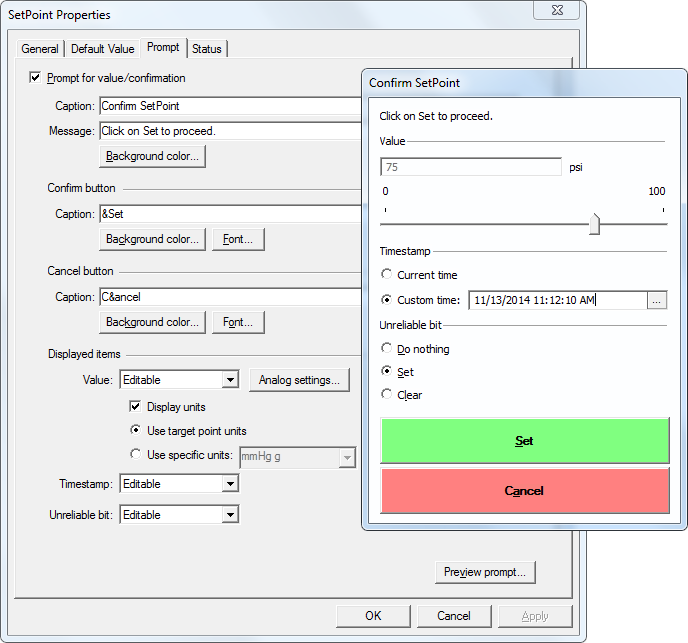
The properties for each section or button on this page are described below.
Prompt Properties
The following table lists and describes Prompt page properties.
| Property | Description |
|---|---|
|
Prompt for value/confirmation |
Indicates that the SetPoint Button will prompt a user for a value or a confirmation. The prompt dialog box will optionally ask you to enter a value (specifically or via an analog slider), optionally specify timestamp options, and optionally what to do with the unreliable status bit when setting a value for the target point. |
| Caption | Specify the title caption of the prompt dialog box. |
|
Message |
Specify the instructional message to display on the prompt dialog box. |
|
Background color… |
Click Background color… to specify the background color of the prompt dialog box using the Color dialog box. |
| Confirm button | |
|
Caption |
Specify the text to use on the Confirm button of the prompt dialog box. The default text is "Set." |
|
Background color… |
Click Background color… to specify the background color of the Confirm button using the Color dialog box. |
|
Font… |
Click Font… to view the Font dialog box from where you can configure the font to use on the Confirm button. The default is MS Shell Dlg (MS Sans Serif, regular, 8 pt). |
| Cancel button | |
|
Caption |
Specify the text to use on the Cancel button of the prompt dialog box. The default text is "Cancel." |
|
Background color… |
Click Background color… to specify the background color of the Cancel button using the Color dialog box. |
|
Font… |
Click Font… to view the Font dialog box from where you can configure the font to use on the Cancel button. The default is MS Shell Dlg (MS Sans Serif, regular, 8 pt). |
| Displayed items | |
|
Select the appropriate display setting for the value field on the prompt dialog box. Also see Value on the Default Value page. Options include:
|
|
|
Click to display the target point's units on the prompt dialog box. The units are displayed next to the value box and are for display purposes only. If selected, there are two options:
A Note About Unit ConversionUnit conversion will take place if the target point is of the analog point data type and has configured Primary units. The SetPoint operation will convert units in the same unit family when units are configured to be displayed in the prompt dialog box and a compatible unit is selected from the drop-down menu. Both the default value and the analog minimum and maximum values will be converted to the selected units. For any default specific value, analog minimum specific value, and maximum values specific value, the units are assumed to be those of the target point's Primary or Alternate units as determined by the Workspace Units or TheView [Units] setting. When doing unit conversions checks are performed to see if the default value alternate point, analog minimum (alternate) point, and analog maximum (alternate) point are of the analog point data type. If not, then an error will be raised. For any initial status point value or status completion value specified by the user, the units are assumed to be those of the status point's Primary units. If status completion is dependent on a target point value match, then appropriate conversions will be done before comparing the values. Also see Primary units and PNT Engineering Units for more information about point units. |
|
|
Select the appropriate display setting for the timestamp field on the prompt dialog box. The default Timestamp is configured on the Default Value page. Options include:
|
|
|
Select the appropriate display setting for the unreliable status bit field on the prompt dialog box. The default Unreliable bit setting is configured on the Default Value page. Options include:
|
|
|
Analog settings… |
Click Analog Settings... to limit data to numerical entry. See Analog Settings below. |
| Click to preview the prompt before committing to your choices. | |
Analog Settings
When prompting for a value, you can limit data to a numerical entry by using analog settings. The valid data range is specified in the Minimum and Maximum value settings. You can optionally provide an incremental slider control to further limit the value setting.
Note: Analog prompt settings can only be used with a target point whose point data type is analog.
|
Click the thumbnail to see |
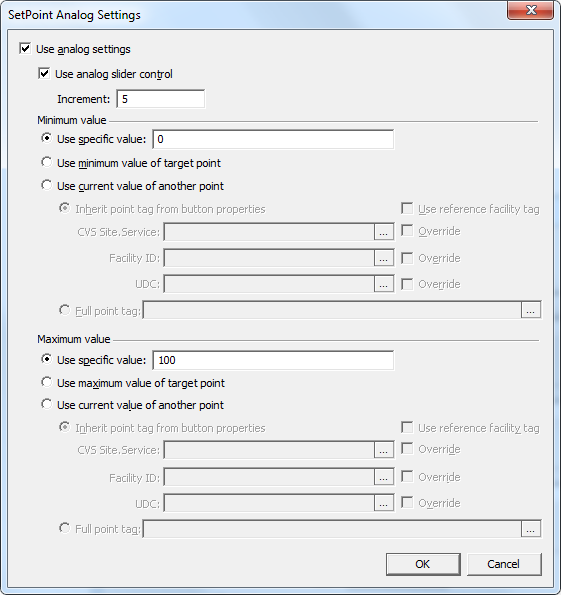
The properties for each section or button on this dialog box are described below.
| Property | Description |
|---|---|
|
Use analog settings |
Indicate that the SetPoint prompt dialog box will interpret the value entered as numeric and will perform numeric range checking based on the limits provided. |
|
Use analog slider control |
Click to include a slider control on the prompt dialog box which can be manipulated to set a numeric value within the specified range. The range of the slider is set by the Minimum and Maximum value properties and the increment is specified by the Increment property. |
|
Increment |
Specifies the increment applied to the slider position when the arrow keys are pressed or the slider thumb is dragged. Default is 1. |
|
maximum value |
Indicate the minimum and maximum values to use for the numeric data range. Select from one of the following options:
|
|
Use specific value |
Click to use a static minimum and maximum value and then specify the value to be used. The default minimum value is 0 and the default maximum value is 100. |
|
Use minimum value/maximum value of target point |
Click to use the minimum and maximum values of the value range of the target point stored in its point configuration record on the Analog page. See Value range:minimum and Value range:maximum for more information. |
|
Click to use the current value of another point, and then specify the point tag. For instance, you might not know what the minimum and maximum values are, but you can read those values from a PLC in the plant, so you could configure to get the values from another point in the system. As in other places, the alternate point can be explicitly defined allowing a templated point tag, inheriting some or all of the point identifier properties from the button properties or from a reference facility. Alternatively a fully qualified point tag may be specified.
|
Note: The prompt settings are also accessible within a scripting environment via the Prompt property.


